
How to Add/display custom input fields in WooCommerce?
This is the complete guide on how to add/display custom input fields in WooCommerce. Here you will learn how to show extra product data and sell extra product options on your website.
Please follow the below steps :
1.Edit a WooCommerce products.
2. Add bellow code to your file .
Here is the code :
// Adding input fields
add_action('woocommerce_product_options_sku', 'rexcel_add_custom_fields' );

function rexcel_add_custom_fields(){
woocommerce_wp_text_input( array(

'id' => '_rexcel_it_services',

'label' => __('Rexcel It Services', 'woocommerce' ),

'placeholder' => __('Enter Rexcel It Services ', 'woocommerce' ),

'desc_tip' => true,

'description' => __('This field is for the Rexcel It Services of the product.', 'woocommerce' ),

) );

}
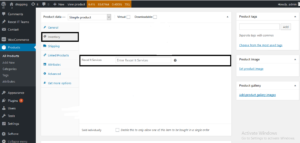
After adding the above you will find a custom field appears like in bellow images
3. After display the custom field , saving data into database .
Here is the code :
// Admin: Save custom field value for simple product inventory options
add_action('woocommerce_admin_process_product_object', 'rexcel_save_custom_fields', 10, 1 );

function rexcel_save_custom_fields( $product ){

if( isset($_POST['_rexcel_it_services']) )

$product->update_meta_data( '_rexcel_it_services', sanitize_text_field($_POST['_rexcel_it_services']) );

}
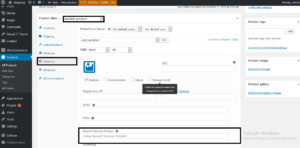
4. Now adding custom field in product variations options.
Here is the code :
// Admin: Add custom field in product variations options pricing
add_action( 'woocommerce_variation_options_pricing', 'rexcel_add_custom_fields_variation', 10, 3 );

function rexcel_add_custom_fields_variation( $loop, $variation_data, $variation ){

$variation_object = wc_get_product( $variation->ID );
woocommerce_wp_text_input( array(

'id' => '_rexcel_it_services_variable'.$loop,

'name' => '_rexcel_it_services_variable['.$loop.']',

'label' => __('Rexcel It Services Product', 'woocommerce' ),

'placeholder' => __('Enter Rexcel It Services Product', 'woocommerce' ),

'desc_tip' => true,

'description' => __('This field is for the Rexcel It Services Product of the product.', 'woocommerce' ),

'value' => $variation_object->get_meta( '_rexcel_it_services' )

) );

}
5. Saving custom data to database.
Here is the code :
// Admin: Save custom field value from product variations options pricing
add_action( 'woocommerce_save_product_variation', 'rexcel_save_custom_fields_variation', 10, 2 );

function rexcel_save_custom_fields_variation( $variation_id, $i ){

$variation = wc_get_product( $variation_id );
if ( isset( $_POST['_rexcel_mpn_variable'][$i] ) ) {

$variation->update_meta_data( '_rexcel_mpn', wc_clean( wp_unslash( $_POST['_rexcel_mpn_variable'][$i] ) ) );

$variation->save_meta_data();

}

}
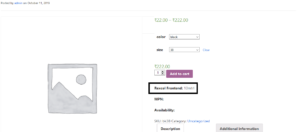
6. If you want to show Frontend .
Here is the code:
// Frontend: Display Rexcel Frontend on product variations
add_action('woocommerce_product_meta_start', 'rexcel_display_custom_fields');

function rexcel_display_custom_fields()

{

global $product;

$mpn_inventory_value = $product->get_meta( '_rexcel_mpn' );

echo '<div class="_rexcel_custom_fields">';

echo '<div class="rexcel-mpn-wrapper"><strong>' . __("Rexcel Frontend", "woocommerce") .

': </strong> <span class="rexcel-mpn">'.esc_html( $mpn_inventory_value ).'</span> </div><br>';

}
add_filter( 'woocommerce_available_variation', 'rexcel_display_custom_fields_variation', 10, 3 );

function rexcel_display_custom_fields_variation( $data, $product, $variation ) {

if( $value = $variation->get_meta( 'rexcel_mpn' ) ) {

$data['rexcel_custom_fields'] .= '<div class="rexcel-mpn-wrapper"><strong>' . __("Rexcel Frontend", "woocommerce") .

': </strong> <span class="rexcel-mpn">'.esc_html( $value ).'</span> </div><br>';

}

}
Question. How to Add/display custom input fields in WooCommerce?
Answer. Please follow the bellow steps :
1.Edit a WooCommerce products.
2. Add bellow code to your file .
Here is the code :
//adding input fields
add_action('woocommerce_product_options_sku', 'rexcel_add_custom_fields' );

function rexcel_add_custom_fields(){
woocommerce_wp_text_input( array(

'id' => '_rexcel_it_services',

'label' => __('Rexcel It Services', 'woocommerce' ),

'placeholder' => __('Enter Rexcel It Services ', 'woocommerce' ),

'desc_tip' => true,

'description' => __('This field is for the Rexcel It Services of the product.', 'woocommerce' ),

) );

}
After adding the above you will find a custom field appears like in bellow images
3. After display the custom field , saving data into database .
Here is the code :
// Admin: Save custom field value for simple product inventory options
add_action('woocommerce_admin_process_product_object', 'rexcel_save_custom_fields', 10, 1 );

function rexcel_save_custom_fields( $product ){

if( isset($_POST['_rexcel_it_services']) )

$product->update_meta_data( '_rexcel_it_services', sanitize_text_field($_POST['_rexcel_it_services']) );

}
4. Now adding custom field in product variations options.
Here is the code :
// Admin: Add custom field in product variations options pricing
add_action( 'woocommerce_variation_options_pricing', 'rexcel_add_custom_fields_variation', 10, 3 );

function rexcel_add_custom_fields_variation( $loop, $variation_data, $variation ){

$variation_object = wc_get_product( $variation->ID );
woocommerce_wp_text_input( array(

'id' => '_rexcel_it_services_variable'.$loop,

'name' => '_rexcel_it_services_variable['.$loop.']',

'label' => __('Rexcel It Services Product', 'woocommerce' ),

'placeholder' => __('Enter Rexcel It Services Product', 'woocommerce' ),

'desc_tip' => true,

'description' => __('This field is for the Rexcel It Services Product of the product.', 'woocommerce' ),

'value' => $variation_object->get_meta( '_rexcel_it_services' )

) );

}
5. Saving custom data to database.
Here is the code :
// Admin: Save custom field value from product variations options pricing
add_action( 'woocommerce_save_product_variation', 'rexcel_save_custom_fields_variation', 10, 2 );

function rexcel_save_custom_fields_variation( $variation_id, $i ){

$variation = wc_get_product( $variation_id );
if ( isset( $_POST['_rexcel_mpn_variable'][$i] ) ) {

$variation->update_meta_data( '_rexcel_mpn', wc_clean( wp_unslash( $_POST['_rexcel_mpn_variable'][$i] ) ) );

$variation->save_meta_data();

}

}
6. If you want to show Frontend .
Here is the code:
// Frontend: Display Rexcel Frontend on product variations
add_action('woocommerce_product_meta_start', 'rexcel_display_custom_fields');

function rexcel_display_custom_fields()

{

global $product;

$mpn_inventory_value = $product->get_meta( '_rexcel_mpn' );

echo '<div class="_rexcel_custom_fields">';

echo '<div class="rexcel-mpn-wrapper"><strong>' . __("Rexcel Frontend", "woocommerce") .

': </strong> <span class="rexcel-mpn">'.esc_html( $mpn_inventory_value ).'</span> </div><br>';

}
add_filter( 'woocommerce_available_variation', 'rexcel_display_custom_fields_variation', 10, 3 );

function rexcel_display_custom_fields_variation( $data, $product, $variation ) {

if( $value = $variation->get_meta( 'rexcel_mpn' ) ) {

$data['rexcel_custom_fields'] .= '<div class="rexcel-mpn-wrapper"><strong>' . __("Rexcel Frontend", "woocommerce") .

': </strong> <span class="rexcel-mpn">'.esc_html( $value ).'</span> </div><br>';

}

}