
How to add Image Carousel Use Elementor ?
Answer. Elementor is one of the renowned page builder plugin for WordPress. Elementor is a faster page builder. It has an unique features, you can create websites that have that certain ‘designer touch’. Elementor has more that 3 million dynamic installs – and for a valid cause. In this blog, we explain you how to add image carousel using Elementor WordPress plugin. Image Carousel Widget in Elementor plugin, allows you to add interesting and dynamic galleries to your pages.
Create a new page and edit with Elementor and then follow these simple steps to add image by using Elementor.
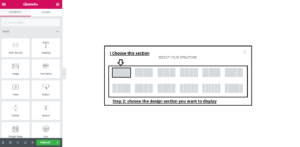
Step 1. Click on Drag plus (+) option .

Step 2. Select your Structure in which style you want this section to show in your website.
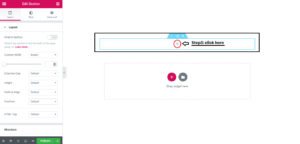
Step 3. Click on plus ( + ) option .
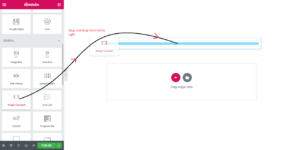
Step 4. Go to left side with mouse cursor and drag and drop the Image Carousel section to plus (+) option field .
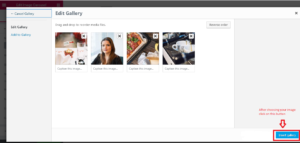
Step 5. After choosing images click on the insert gallery button .
Step 6. Choosing images size, slides to show, slides to scroll, image stretch, navigation, link on images, caption .

Step 7. Click on publish button .